
How to Scan Pokémon Cards to Check Their Value (and Track Your Whole Collection)
You've got a binder, a shoebox, or a stack from a trade, and you want to know what it's worth. Looking cards up one by one means typing names, scrolling past the wrong set, and guessing which printing you're holding. The faster way to check the value of your Pokémon cards is to scan them: point your phone at a card, get the card, the printing and its market price, and move on to the next one.
This guide covers how scanning works in Capyberry, how to get a clean read on tricky cards like holos, reprints and Japanese prints, and how to turn a pile of scans into a collection with a running total that keeps itself up to date.
Scan a card in seconds
Open the scanner from the camera button in any search bar and hold a card in the frame. There are two ways to scan:
- Live adds a card the moment it's recognised. Hold one up, wait for the green box, move to the next. This is the mode for working through a stack.
- Snap waits for you to tap the shutter. It's better for a single card, awkward lighting, or a card in a case, and if it isn't sure, it shows you its top matches to pick from.
Recognition runs on your phone. The photo never leaves it; only the card that was matched is looked up for a price.
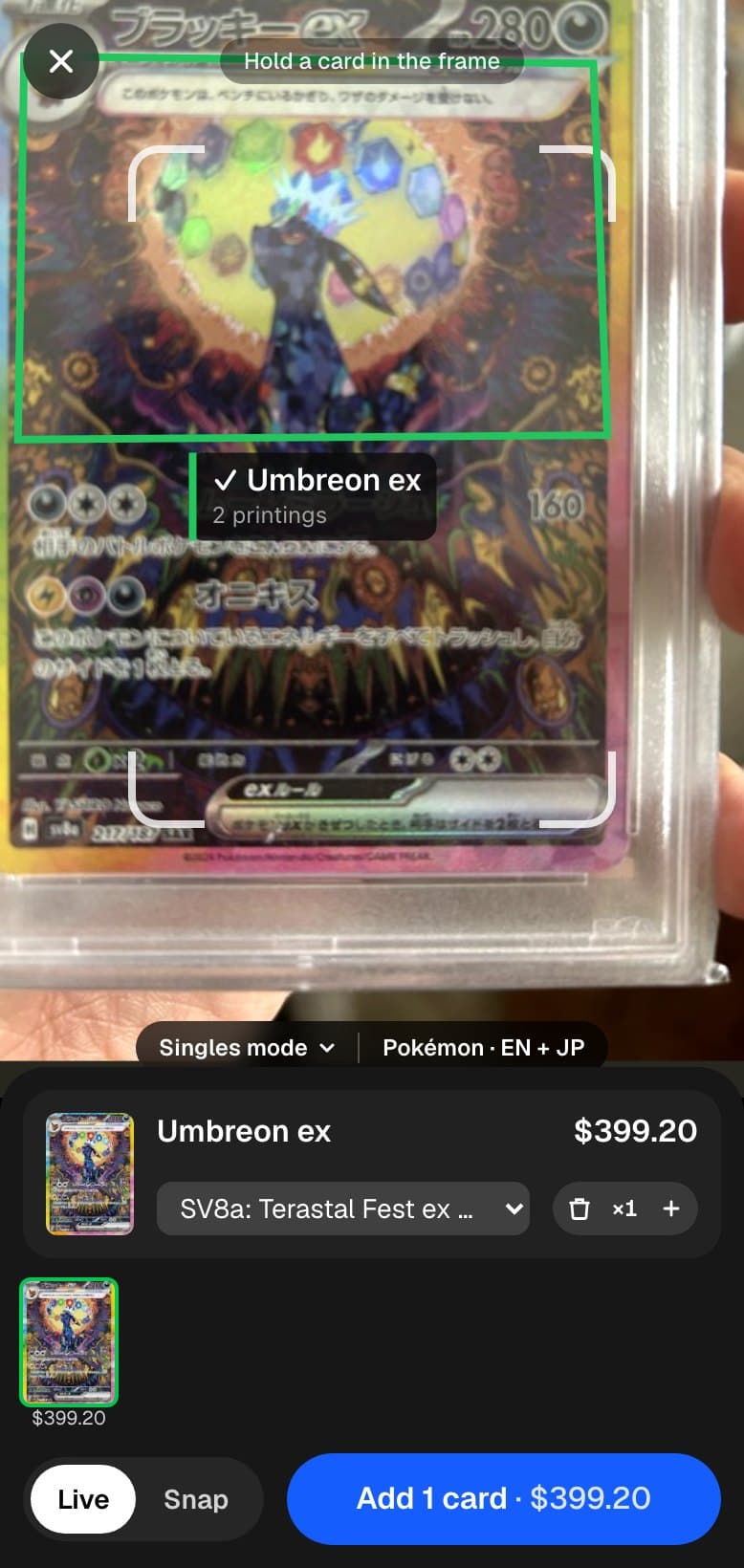
Every card you scan lands in a tray along the bottom with its price, and the total sits on the button you tap when you're done.
The printing is the price
Recognising the Pokémon is the easy part. What decides the value is which printing you're holding, and plenty of artwork has been printed many times: a Base Set Charizard, its Shadowless and 1st Edition versions, Base Set 2, Legendary Collection, the XY Evolutions reprint, Celebrations, and more, all with the same art and prices that range from tens of dollars to thousands.
So after the card is recognised, the scanner reads the details that tell printings apart: the frame and era, the set symbol, the anniversary logos on Celebrations cards, the 1st Edition stamp, and the card number and copyright line along the bottom edge. It then pre-selects the printing it believes you have.
Two things to know about that pick:
- It's never locked in. The printing is a dropdown you can change in one tap, and when the scanner isn't sure, the dropdown is highlighted so you know to check it.
- Some variants are always your call. A regular holo and its reverse holo share one listing with two prices, and a single photo can't reliably tell the foil pattern apart, so you choose Reverse Holo yourself when that's what you have.
Glare is the most common reason a printing gets misread. If a holo's frame or symbol is washed out by a reflection, tilt the card slightly or use Snap and shoot it off-angle. A sleeve, top loader or slab is fine; the scanner looks for the card inside.
English and Japanese cards
Most Japanese cards share their artwork with an English print, which is exactly why they're easy to mix up in a price lookup. The scanner reads the text around the art (the card name and the bottom strip) to tell the language, and picks the Japanese printing when that's what you're holding. Japanese printings are marked · JP in the printing list and come with their own market price, so a Japanese card is never quietly priced as its English twin.
That covers tens of thousands of Japanese printings, including some that don't have a catalog photo yet: those show the matching English card's image, with the Japanese card's own name, set and price.
Binder mode or Singles mode
Scanning a binder and scanning a stack of duplicates are different jobs, so the scanner has a setting for each:
- Binder mode adds each card once. Point at the same card twice and it just highlights the one already in your list. Use it when you're sweeping a binder page and don't want to count a card twice because your hand lingered.
- Singles mode counts every scan. Scan a card three times and you have three copies. Use it for a stack of duplicates or a bulk lot.
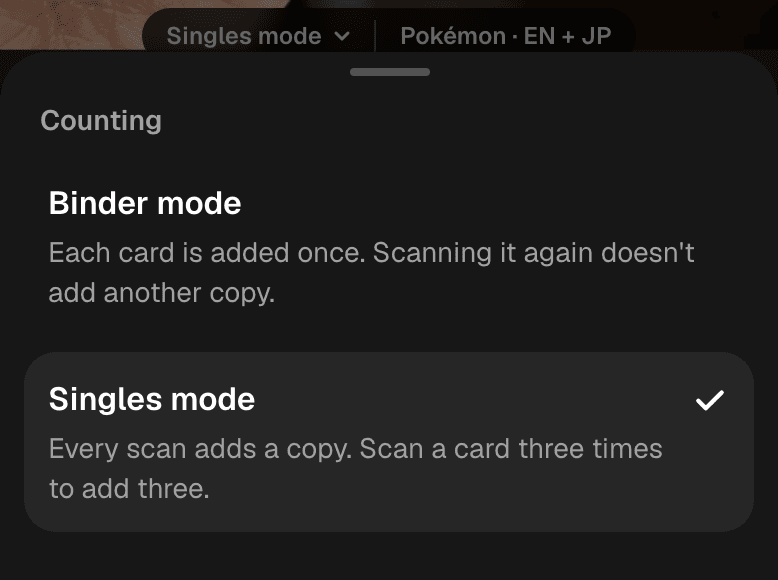
You can always fix a count by hand with the − and + next to each card.
Track your collection's value
Checking a card's value once is useful. Knowing what your whole collection is worth, and keeping that number current, is the reason to scan in the first place.
Open Collection and scan straight into it with the camera button in its search bar, or type a card name and add it from the list. Each card shows its market price, how many you have, and its value at that quantity, and the total for the folder sits at the top.
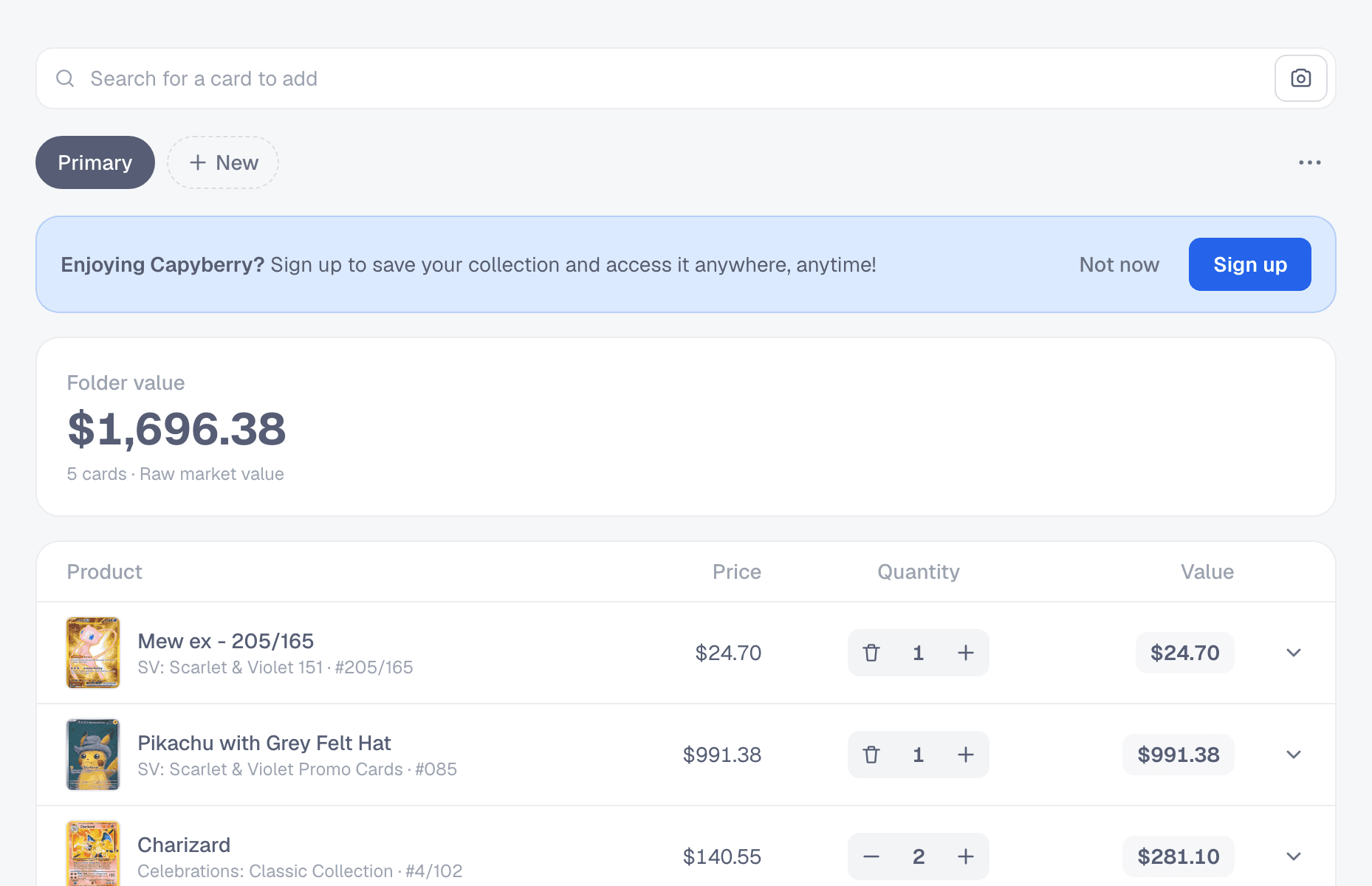
A few details that make it hold up over time:
- Prices update on their own. The total is recalculated from current market prices, so there's nothing to refresh by hand.
- Folders let you split things the way you think about them: a binder per set, a trade pile, cards you're selling. Everything starts in Primary; a free account lets you add and rename folders.
- Cards without a price are counted but left out of the total, and the folder says how many there are, so a missing price never inflates or hides your number.
Check a card's price history
A total tells you what the collection is worth today. Expand any card to see where it's been heading: the last 30 or 7 days, in dollars or percent, plus how its momentum ranks against the rest of its set.
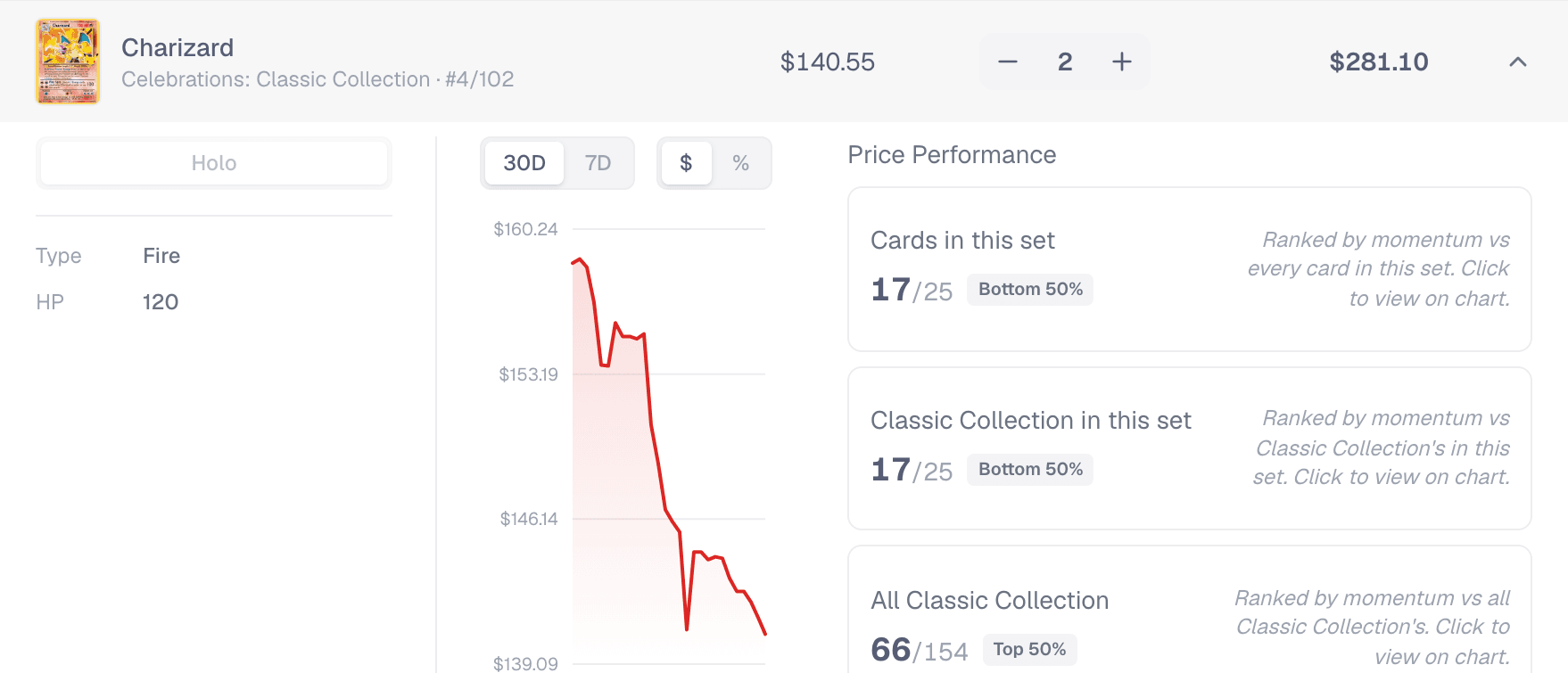
This is the check worth doing before you sell or trade a card. A card that's slid fifteen percent in a month is priced differently from one that's climbing, even if today's number is the same.
No account needed to start
You can scan and build a collection without signing up. Your cards are kept in your browser, and when you're ready to keep them for good, signing up saves the collection to your account so it's there on any device. Nothing you've added is lost when you do.
A quick workflow for a whole binder
- Open Collection, tap the camera, and set Binder mode.
- Sweep each page in Live: hold a card in the frame until it's boxed in green, then move on.
- Glance at any card with a highlighted printing and confirm it, especially reprinted classics and holos.
- Pick Reverse Holo where that's what you have.
- Tap Add and check the folder total. Expand anything valuable to see its trend.
Once you know what your cards are worth, the same prices help on the buying side. If a binder page has gaps, the best way to optimize multiple card purchases on eBay shows how to fill a whole want-list in one go, and the complete guide to buying Pokémon cards on eBay safely covers vetting the sellers you buy from. Selling or trading instead? How to price cards at a card show shows how to pull recent sold prices for a whole stack at once.
Ready to shop smarter? Paste your want-list and let Capyberry find the best way to buy your whole list.